
Video Converter for Android: free and unlimited
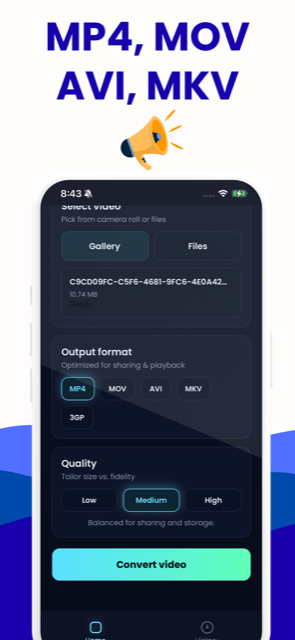
On Android the app is free and unlimited - every conversion, no purchase. It converts between MP4, MOV, AVI, MKV and 3GP using your phone's own hardware encoder, so long 4K clips finish far faster than any browser can manage.
Free on iPhone and Android · No ads · Nothing is uploaded
What you get
Hardware encoding
Conversions run on MediaCodec, the encoding block built into your phone's chip. That is why a long or 4K clip finishes in a fraction of the time a browser needs.
Unlimited and free on Android
There is no conversion counter, no trial and no purchase in the Android build. The iPhone version works differently, and this page says so plainly.
Five formats both ways
MP4, MOV, AVI, MKV and 3GP go in, and the same five come out. AVI is written with the MPEG-4 Part 2 encoder that older players expect.
Gallery, Files and the share sheet
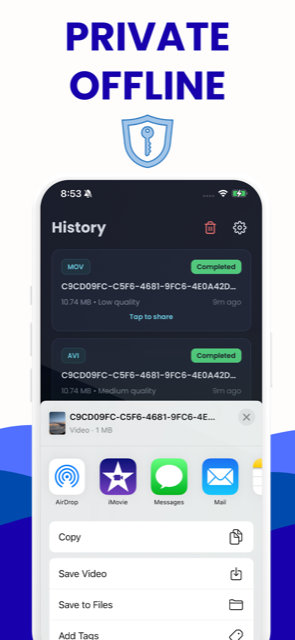
Pick a clip straight from your camera roll or browse Files for it. The finished video hands off to the Android share sheet for WhatsApp, Drive or anywhere else.
History that remembers
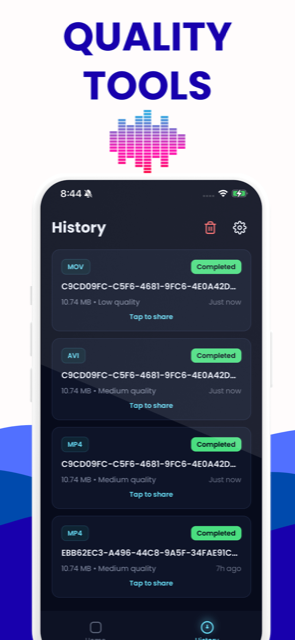
Every completed job is kept with its format, quality, original size and date. Tap an old one to share it again instead of converting the same clip twice.
Works with no signal
The whole pipeline is FFmpeg on the device, so conversions run in aeroplane mode with no account and no network leg. The app asks for photo access and nothing else.
What the Android app does
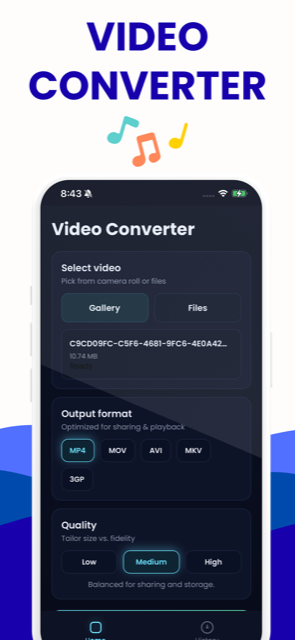
Video Converter for Android converts between MP4, MOV, AVI, MKV and 3GP on the phone itself, with no account and no upload. You pick a clip from the gallery or from Files, choose the output format, choose Low, Medium or High, and press Convert. The result goes to the system share sheet and is kept in a History tab, so last week's file can be shared again without converting it twice.
On Android every conversion is free and unlimited. There is no counter, no trial and no purchase in the Android build - the honest difference from the iPhone version, covered further down this page.
What the app does better than this website
The converter on the rest of this site is FFmpeg compiled to WebAssembly, running single-threaded inside your browser tab. That is excellent for rewrapping a file and only adequate for re-encoding one: roughly real time at 720p, slower at 1080p, worse again for H.265 or VP9. The app hands the frames to MediaCodec, the dedicated encoding block in your phone's chip, which is built for exactly this and does not care how long the clip is. On a 4K holiday video the gap is not a few per cent, it is a different order of magnitude.
The app also has no 2 GB ceiling. The browser build addresses memory with a 32-bit heap, so it refuses files above 2 GB outright and warns you past about 300 MB, because a conversion needs roughly three times the file size in free memory. The app streams from storage instead, so the only limit is how much free space the phone has.
Three smaller things matter more in practice than they sound: it reads your camera roll directly, so there is no "find the file" step; it finishes into the Android share sheet, so the clip reaches WhatsApp or Drive in one tap; and it works with no tab open and no network at all.
What this website does better than the app
The big one is stream copy. The app always re-encodes: even MOV to MP4, where the file almost always already holds H.264 and AAC and the two containers are close cousins, is decoded and encoded again at the preset bitrate. The browser tool checks the codecs first and, when they are already legal in the container you asked for, copies the streams across untouched. That is seconds instead of minutes, and the picture is bit-for-bit identical rather than merely close. The same applies to MKV to MP4 and to TS, MTS and M2TS files.
| Job | Better in the app | Better in the browser |
|---|---|---|
| A 4K clip, or anything over an hour | Hardware encoder, no memory ceiling | - |
| MOV, MKV or TS into MP4 unchanged | - | Stream copy: seconds, lossless |
| Anything involving WebM | - | The app has no WebM at all |
| Shrinking to 720p, or 60 fps down to 30 | - | Resolution and frame-rate controls |
| Finding out what codec a file holds | - | Full codec, profile and bitrate readout |
| Converting on a laptop or Chromebook | - | Any modern browser, nothing to install |
The app has no WebM in either direction, no resolution or frame-rate control, and no constant-quality mode - it sets a bitrate and lets the hardware hit it. It also shows you only the file name and size, where the browser converter reads the header and tells you the video codec and profile, resolution, frame rate, duration, audio codec and overall bitrate before you commit to anything. If your actual question is "what is inside this file and why will nothing play it", start with the HEVC to H.264 page or the guide on checking a video codec without installing anything.
What the three quality presets really do
Low, Medium and High are video bitrates: 1 Mb/s, 2.5 Mb/s and 5 Mb/s, with audio re-encoded to AAC at 128 kb/s every time. Medium is the default and is a sensible target for phone footage; High is for material you still want to edit or upload later. Because these are bitrates rather than a quality target, a simple scene gets the same allowance as a busy one: that is the trade for hardware speed.
Two further notes: AVI output uses the MPEG-4 Part 2 encoder rather than H.264, which is what old AVI players expect, and if MediaCodec refuses an unusual file the app falls back to a slower software encoder.
One limit the app and the browser tool share: only the first video track and the first audio track survive, and subtitle tracks are dropped. A multi-language MKV comes out with one soundtrack and no subtitles. If those tracks matter, keep the file as an MKV - see getting an MKV onto a smart TV for when that is the better move.
What it costs on Android, and why iPhone differs
On Android the app is free and unlimited. Convert one file or a hundred; the build ships without a purchase.
On iPhone it is not the same deal, and pretending otherwise would be a lie you would discover in about five minutes. There, the first conversion is free and further conversions need the paid upgrade. That is the honest summary of the iPhone version. The converter on this website is free on every platform including iOS, with no daily limit and no account, for files up to 2 GB, which is a real answer if you would rather not pay.
Nothing leaves the phone
The whole pipeline is FFmpeg running locally on the device: no account, no server leg, no network call, which is why it works in aeroplane mode. The Android build asks for your photo library and nothing else - camera, microphone and storage permissions are blocked in the manifest. A file that is never sent anywhere cannot be retained or leaked in someone else's breach, which is the same architectural argument the browser tool makes.
A rule of thumb
If the job is a container swap - a MOV, an MKV or a camcorder TS file that needs to become an MP4 - use the browser tool, because a stream copy is faster and lossless and the app cannot do it. If it is long or 4K footage that genuinely needs re-encoding, or the video is already sitting in your gallery, install the app and let the hardware work. And if you are here because an iPhone video will not open on your phone, the guide on that exact problem explains what is actually wrong first: usually HEVC rather than the MOV wrapper.
Video Converter on Android
Pick a video, choose the format and quality, convert, share - and find it again in History whenever you need it.
Free on iPhone and Android · No ads · Nothing is uploaded
Android questions
Short answers here, the full story in the guides.
Is the Android app really free, with no limit?
Yes. On Android every conversion is free and unlimited - there is no counter, no trial period and no purchase in the shipped build. The iPhone version is different: the first conversion is free and further ones need the paid upgrade. The converter on this website is free everywhere, with no daily limit, for files up to 2 GB.
Should I use the app or the converter on this site?
Use the browser tool when the file only needs rewrapping, such as MOV or MKV into MP4, because it copies the streams instead of re-encoding them: seconds, and bit-for-bit identical. Use the app for long or 4K footage that genuinely needs re-encoding, or for files above 2 GB, which the browser cannot hold.
Does the app upload my videos anywhere?
No. FFmpeg runs on the phone, so a conversion involves no server and no network call at all - it works in aeroplane mode. There is no account to create. The Android build requests access to your photo library only; camera, microphone and storage permissions are blocked outright.
Can the app convert WebM, or resize a video?
No to both. The app handles MP4, MOV, AVI, MKV and 3GP only, and it keeps the source resolution and frame rate. If you need WebM, a 1080p downscale, 60 fps down to 30, or constant-quality CRF encoding, use the converter on this site - all of that is in its advanced options.
What happens to subtitles and extra audio tracks?
They are dropped. The app keeps the first video track and the first audio track, so a multi-language MKV comes out with one soundtrack and no subtitles. The browser converter behaves the same way and warns you when it finds extra tracks. To keep them, leave the file as an MKV.
Why is my converted file bigger than the original?
Because the app targets a bitrate rather than matching the source. High is 5 Mb/s, so a clip that was already compressed harder than that grows. Pick Medium or Low, or use the browser tool's constant-quality mode, which spends bits only where the picture needs them.