
Video Converter for iPhone and iPad
The same job as the converter on this site, done by your phone instead of your browser tab. It uses Apple's hardware encoder, so long 4K clips finish in a fraction of the time, and your camera roll is one tap away.
Free on iPhone and Android · No ads · Nothing is uploaded
What you get
Apple's own encoder
The app hands the encode to VideoToolbox, the silicon Apple uses for camera recording. That is why a long 4K clip finishes in minutes on a phone when the same file would grind for an hour in a browser tab.
No 2 GB ceiling
The browser tool refuses files over 2 GB because a 32-bit WebAssembly heap cannot address them. The app has no such limit - the only ceiling is free space on the device.
Straight from the camera roll
Pick a clip from Photos or reach into the Files app, including iCloud Drive and any storage provider you have connected. No exporting to a folder first.
Share sheet on the way out
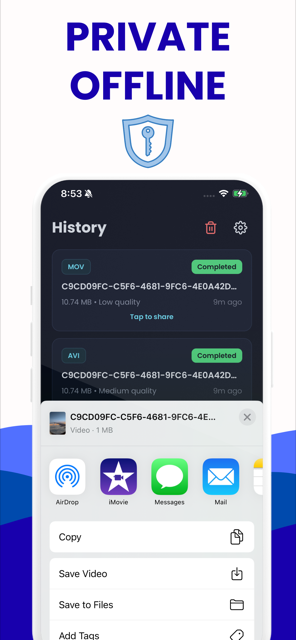
The finished file goes to the iOS share sheet: AirDrop it, drop it into Messages or Mail, save it back to Photos, or file it in Files. It is a normal iOS document from that point on.
History that remembers
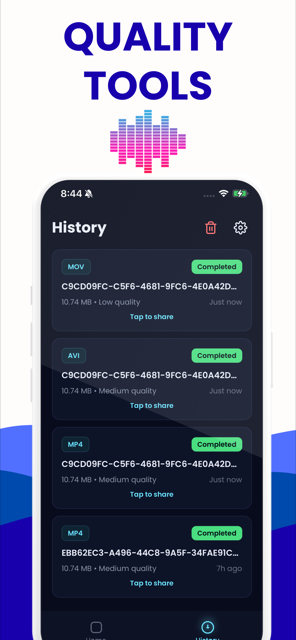
Every finished conversion is kept with its format, quality, original size and date, and can be re-shared from the History tab days later without converting it again.
No account, no network
There is no sign-in and nothing leaves the device. Put the phone in aeroplane mode and it still converts, because the whole FFmpeg pipeline is installed on it.
What the app actually does
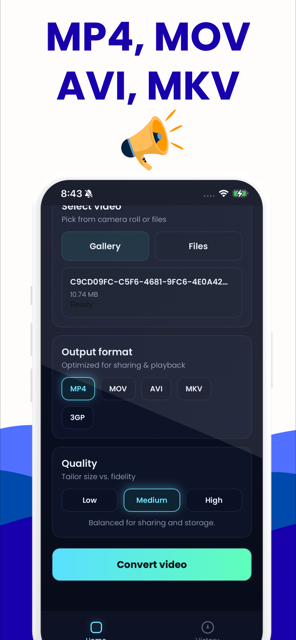
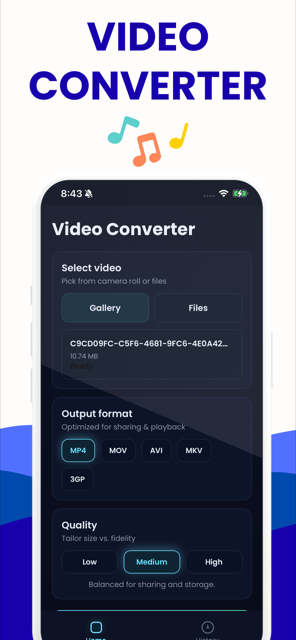
Video Converter is a free download for iPhone and iPad, running on iOS 15.1 and later. You pick a video from your camera roll or from the Files app, choose an output format from MP4, MOV, AVI, MKV or 3GP, choose Low, Medium or High quality, and press Convert. The result is saved or pushed straight into the iOS share sheet, and it also lands in a History tab that keeps the format, the quality, the original size and the date, so you can re-share it a week later without converting anything again.
Under the hood it is FFmpeg, the same engine that powers the converter on this site, but wired to the encoder built into your phone. Low, Medium and High mean 1 Mb/s, 2.5 Mb/s and 5 Mb/s of video, with AAC audio at 128 kb/s. Nothing is uploaded, there is no account, and the app asks for one permission: your photo library.
Where the app beats this website
Four real differences, not marketing ones.
- Speed on big files. The browser build is single-threaded software encoding. A 1080p re-encode runs slower than real time, and H.265 or VP9 several times slower again. The app hands the work to VideoToolbox, the dedicated hardware your phone uses when it records video, which is a different order of magnitude on anything long or 4K.
- No 2 GB wall. WebAssembly in a browser is bounded near 2 GB of addressable memory, so the web tool refuses anything larger and warns you past about 300 MB. A drone clip or a screen recording that runs to several gigabytes simply has to be done in the app.
- It is where your videos already are. Photos and Files are one tap away, and the finished file goes back out through the share sheet. In a browser you are exporting to Downloads and moving it by hand.
- It does not need a tab. Once installed, it works with no network at all and survives you closing everything. A browser tab that gets discarded mid-encode loses the encode.
Where this website beats the app
This is the half most app pages leave out. The web converter can do several things the app cannot, and for a lot of jobs it is the better tool even if you already have the app installed.
- Stream copy. When your file already holds a codec the target container accepts, the web tool copies the streams instead of re-encoding them: seconds, and the video is bit-for-bit identical. That is the normal case for MOV to MP4, MKV to MP4 and TS to MP4. The app always re-encodes, even MOV to MP4, so it always costs you a generation of quality.
- WebM. The app has no WebM at all. The web tool reads and writes it, which is what you need for WebM to MP4.
- Resolution, frame rate and codec control. The browser tool can drop 4K to 1080p, pin a variable frame rate to a constant 30, choose H.264, H.265 or VP9, and encode at constant quality (CRF) rather than a fixed bitrate. The app is bitrate-only and fixed to whatever the source is.
- It tells you what you have. Before converting, the web tool reads the header and shows the container, video codec and profile, resolution, frame rate, duration, audio codec and channel layout, bitrate and how many extra tracks are present. The app shows a file name and a size. If you are diagnosing why a file will not play, that readout is the whole answer - see how to check a video's codec.
- It is free everywhere. No daily cap, no sign-in, files up to 2 GB, and it runs the same on a Mac, a PC, a Chromebook or a Linux box.
What it costs on iPhone
Be clear about this before you install. On iPhone and iPad, the first conversion is free. After that, further conversions need the paid upgrade. On Android the same app is unlimited and free with nothing to buy - the difference is real and we are not going to pretend otherwise.
So the honest advice is: use the free conversion to see whether the speed and the camera-roll integration are worth it for the footage you actually shoot. If your files are small enough for a browser and you are happy exporting from Downloads, the converter on this site costs nothing on any platform and is not going to start charging you. If you are regularly converting multi-gigabyte 4K clips on a phone, no browser is going to do that job at all, and the upgrade buys you the hardware encoder.
Which one to use, by job
| What you have | Use |
|---|---|
| A MOV from your iPhone that Windows will not open | Either. The web tool remuxes it losslessly in seconds; see converting MOV to MP4 on an iPhone. |
| A 6 GB 4K screen recording or drone file | The app. The browser refuses it. |
| An HEVC clip an older Windows PC cannot decode | The web tool, via HEVC to H.264 - it re-encodes to H.264 with quality control the app does not have. |
| A video your Android friend cannot open in Messages | Either. The background is in why iPhone video will not play on Android. |
| A WebM download | The web tool. The app cannot read WebM. |
| Something you need at a specific resolution or frame rate | The web tool. The app has no resize and no frame-rate control. |
Limits worth knowing
The app keeps only the first video and first audio stream. A multi-language MKV loses its extra audio tracks and any subtitles, exactly as the browser tool does - if subtitles matter, keep a copy of the original. AVI output is encoded with MPEG-4 Part 2 rather than H.264, because that is what the old players and set-top boxes that still want AVI expect. DRM-protected video cannot be converted by this app or by anything else. And the app is new: it has no ratings on either store yet, so judge it on the free conversion rather than on a star average that does not exist.
Video Converter on iPhone
Pick a video, choose the format and quality, convert, share - and find it again in History whenever you need it.
Free on iPhone and Android · No ads · Nothing is uploaded
iPhone questions
Short answers here, the full story in the guides.
Is the iPhone app free?
It is free to download, and your first conversion is free. Further conversions need the paid upgrade. On Android the same app is unlimited and free with no purchase at all. If you would rather not pay anything on any device, the converter on this site is free, needs no account and has no daily limit, up to 2 GB per file.
Does the app upload my video anywhere?
No. The whole pipeline is FFmpeg running on your device, so the file never leaves the phone. There is no account and no server to send it to, and it converts perfectly well in aeroplane mode. The only permission it asks for is access to your photo library.
Does the app convert MOV to MP4 without losing quality?
No. The app always re-encodes, even when a straight stream copy would work, so a generation of quality is lost at the preset bitrate. For a truly lossless MOV to MP4 the browser tool on this site copies the streams instead, leaving every frame untouched, and it takes seconds.
Which formats does the iPhone app handle?
MP4, MOV, AVI, MKV and 3GP, both in and out. There is no WebM, no GIF and no audio-only export. If you need WebM, or you want to change resolution, frame rate or codec, use the converter on this site instead - it handles far more input formats.
How large a file can the app convert?
There is no built-in ceiling, so the practical limit is free space and patience. That is the main reason to install it: the browser tool refuses anything over 2 GB, because a 32-bit WebAssembly heap cannot address more, and it warns you past roughly 300 MB.
Does it work on an iPad?
Yes. The app runs on iPhone and iPad on iOS 15.1 or later, with the same formats, the same quality presets and the same History. On an iPad the Files app route is usually the easier one, since larger recordings tend to live in iCloud Drive rather than in Photos.